Intelligent Search
Coactive’s Intelligent Search is designed to expedite and enhance content discoverability. This feature allows you to search through your content based on a textual description (e.g., “school of fish,” “A couple skiing as the sun is setting,” etc.) without the need for pre-populated tags or metadata. Users can search for people, locations, objects, events, actions, a combination of the above… and more.
The search experience lets users integrate a search query with custom metadata generated on the platform called “Coactive Concepts.” These tags can represent abstract ideas, objects, or actions specific to your enterprise’s unique taxonomy.
Try out Intelligent Search
Section titled “Try out Intelligent Search”- Log into your Coactive account
- In the “Datasets” tab, select the dataset with your assets.
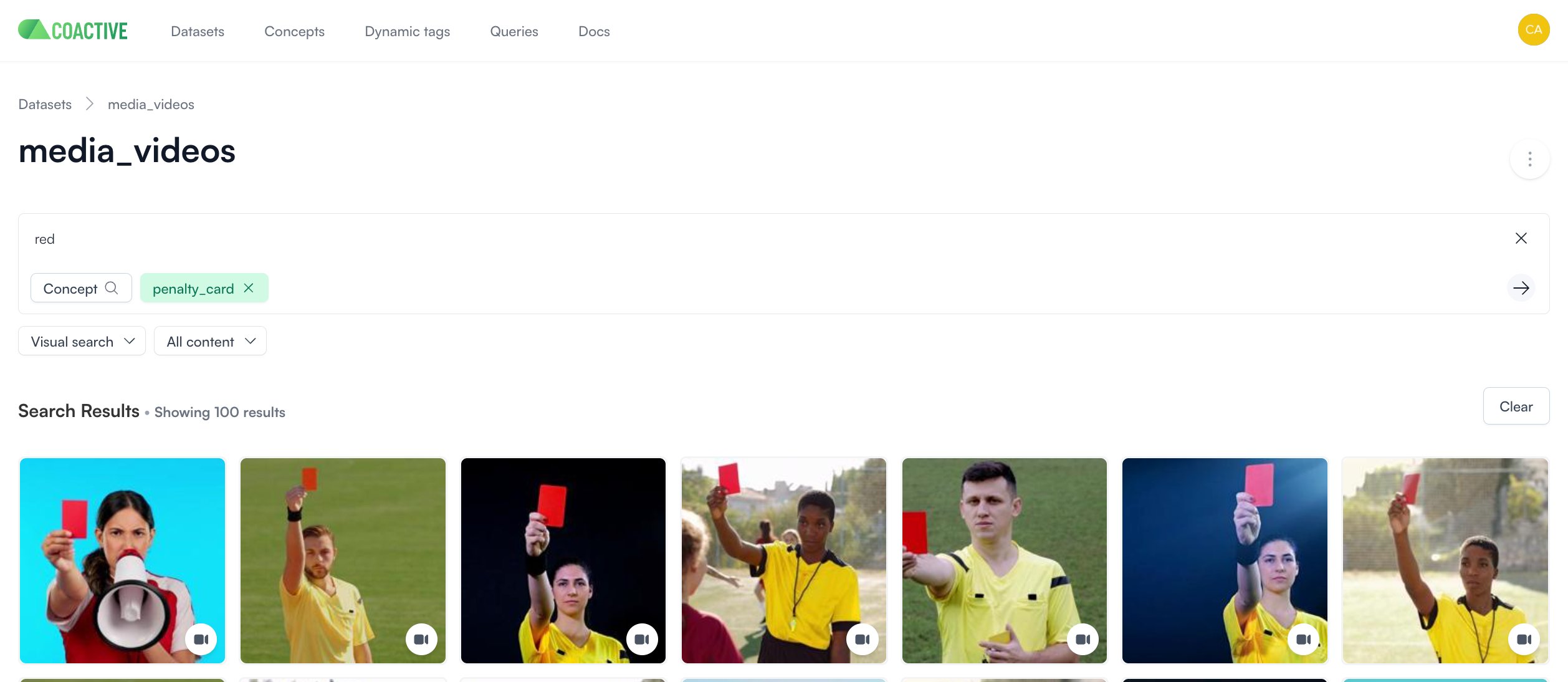
- At the bottom of the search bar, you’ll see that “Visual search” is the default selected option.
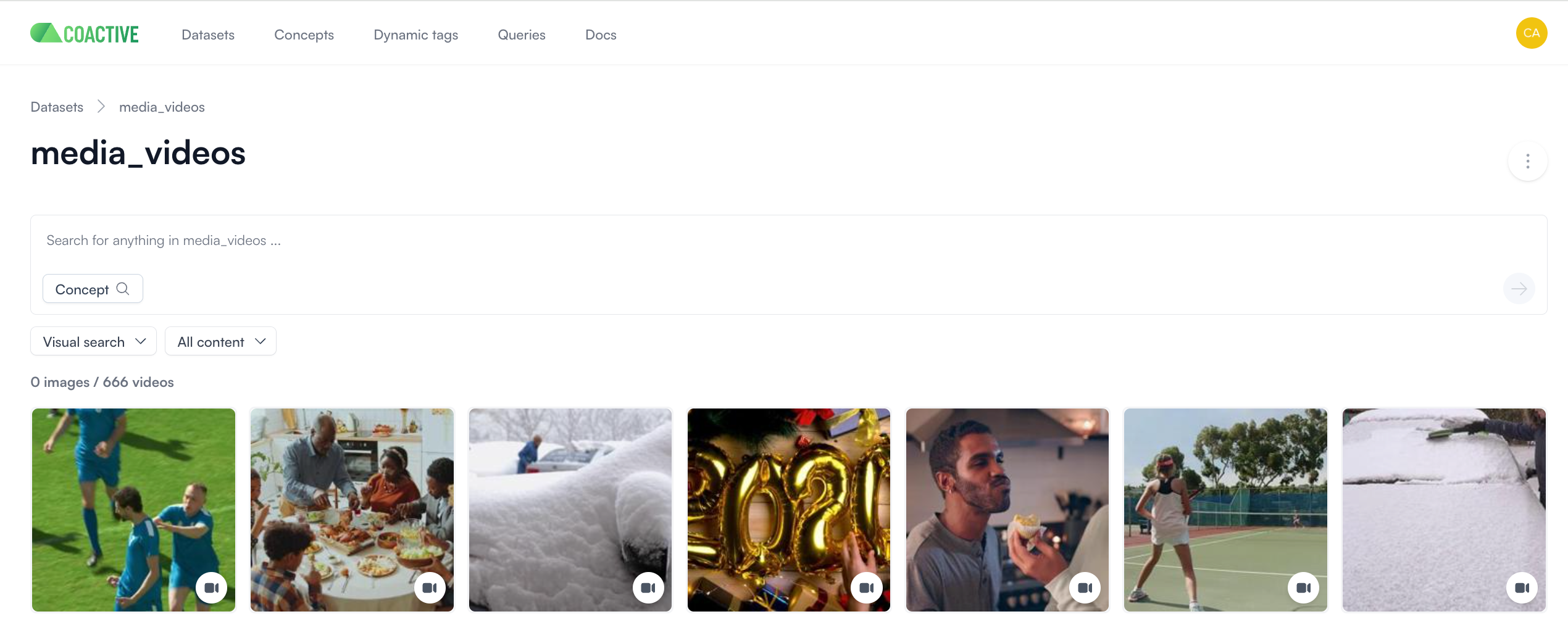
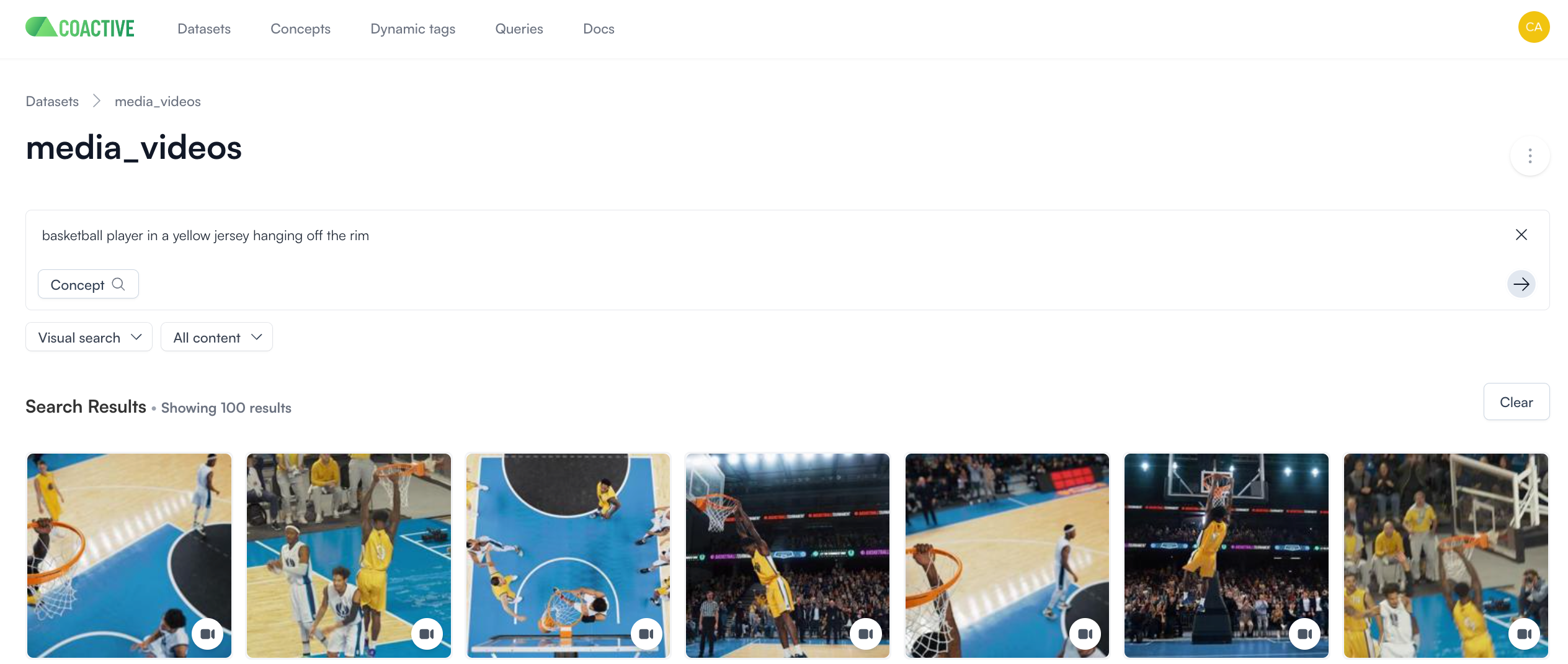
- Enter your search query and click Enter or the arrow.
- If you’d like to integrate one of your concepts, it’s as simple as using the concept drop-down and selecting your concept and hitting enter or the search arrow.
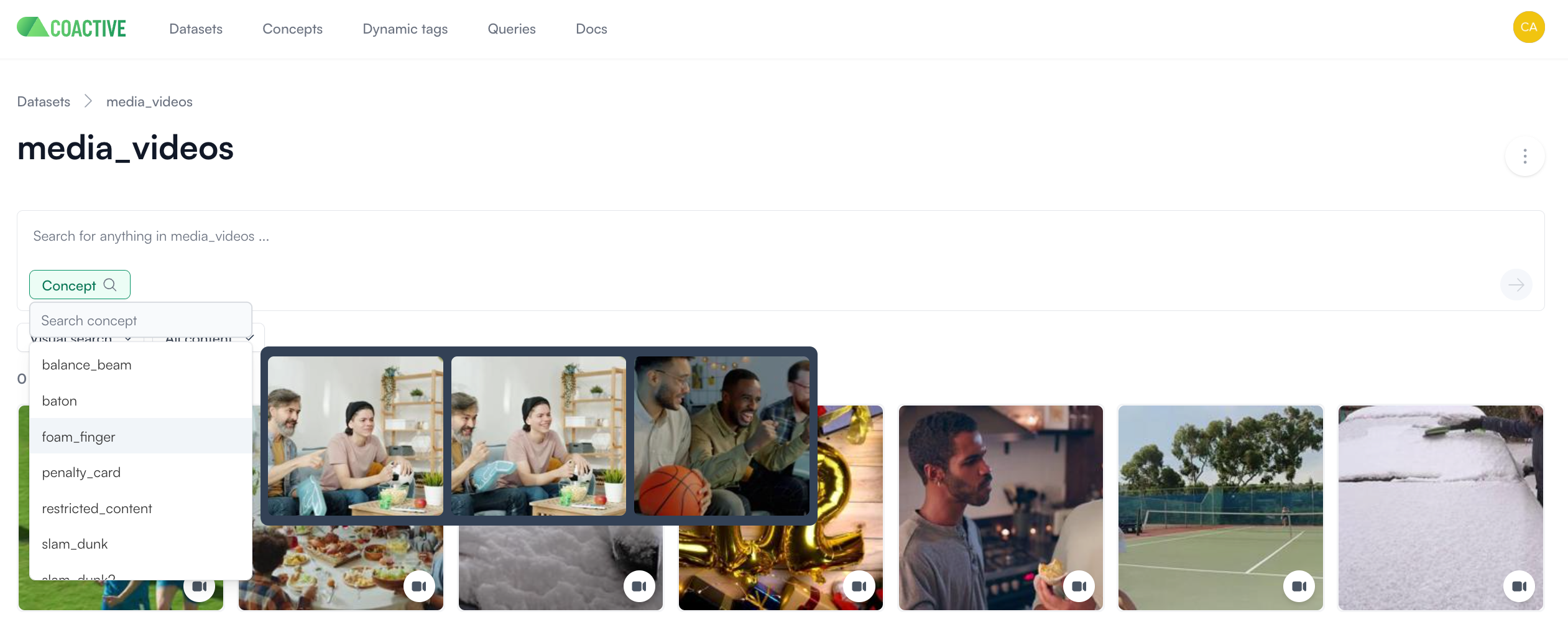
- Want to narrow your results down even further? Select your concept and then use Intelligent Search to type in your query!
How can I improve my searches?
Section titled “How can I improve my searches?”“Query engineering” involves designing and optimizing visual search queries to retrieve the most relevant videos. However, results may sometimes not meet expectations due to how machine learning models interpret visual data.
- For example, searching for “home interior” might return results that include home offices, kitchens, living rooms, etc., but require additional effort to find exactly what you’re looking for.
- Adding detail, such as “a man working on a couch in his home”, provides more context and improves search accuracy.
Including more detail can help refine your queries and help you get your desired results quicker.
Tips for optimizing searches
Section titled “Tips for optimizing searches”- Start Broad, Then Narrow Down: Begin with a broader query and gradually add more details.
- Examples:
- Basic: friendship
- Medium: friends enjoying a meal together
- Advanced: friends enjoying a meal together at night
- Examples:
- Review and Refine: After viewing the initial results, refine the query based on what was or wasn’t found. Continue to add more specific details.
- Use synonyms: Think of different words or phrases that mean the same thing or are related to your original query.
- Examples: For a query like “mature adult,” also try out “elder” and “senior citizen”.
Want to search for audio?
Section titled “Want to search for audio?”When searching your content, you might find yourself looking for something that isn’t visually distinct. Audio search allows you to leverage natural language queries to explore your content’s audio track, just as you would search a transcript (e.g. “I have a dream”, “Princess Diana killed in Paris car crash”, etc.), all without the need for pre-populated metadata.
How do I use audio search?
Section titled “How do I use audio search?”Within our media use cases, we typically see audio search most helpful when users are looking to find a specific event that is less defined by visual elements, for example:
- A specific quote
- A contextual event (i.e. a description of an event or a headline)
- … and more!
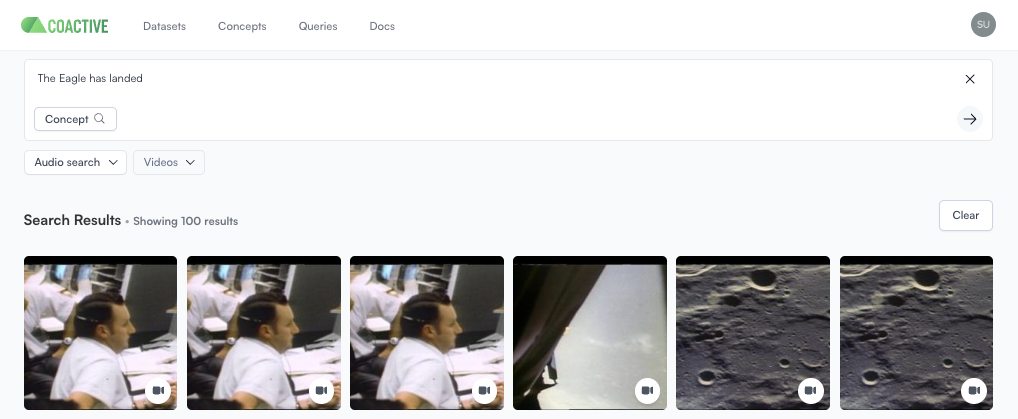
With Coactive’s audio search, you use quotes or natural language to pinpoint content based on what was spoken or reported audibly - no metadata needed.
Try it out!
Section titled “Try it out!”-
In the dropdown under the search bar, select “Audio Search”, type your phrase in, and select enter or the arrow.